Enhances File Explorer with a customizable favorites sidebar and easy drag-and-drop folder shortcuts
Enhances File Explorer with a customizable favorites sidebar and easy drag-and-drop folder shortcuts
Vote (8 votes)
Program license Free
Developer Visit Website
Version 1.1.0.3
Works under Windows
Vote
(8 votes)
Developer
Visit Website
Works under
Windows
Program license
Free
Version
1.1.0.3
Pros
- Highly customizable sidebar for quick access to folders and applications
- Simple drag-and-drop shortcut creation
- Minimal impact on system resources
- Enhanced organization using separators and custom icons
Cons
- Requires manual activation in each Explorer window
- No modern graphical configuration interface
- Not officially compatible with recent Windows versions
- Setup may be challenging for less technical users
Customize Windows Explorer’s Places Bar with a flexible sidebar tool
Overview of FindeXer
FindeXer is a utility designed for users who want greater control over the navigation panel within Windows File Explorer. By replacing or expanding the default “Places Bar” with a customizable sidebar, FindeXer allows quick access to user-selected folders, drives, or even applications, improving workflow efficiency for those who often manage many file locations.
Installation and Integration
Unlike many modern tools, FindeXer does not feature an orthodox installation wizard. Getting started requires running a provided batch file (“register.bat”) that integrates the extension into Windows Explorer. A system restart or restarting the Explorer process is usually necessary for changes to take effect. Once active, FindeXer is accessible via the Explorer window under View > Explorer Bar > FindeXer.
Customization and Features
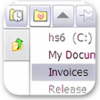
A key strength of FindeXer lies in its deep customization options. Users can personalize the sidebar layout, adding shortcuts to any folder, drive, or file simply by dragging and dropping them. The order, quantity, and appearance of these links are fully adjustable; FindeXer supports tweaking icons, text fonts, and background colors, allowing the sidebar to blend with any theme.
Beyond simple folder shortcuts, FindeXer accommodates links to applications, network locations, or specific files—expanding its utility for advanced users. Custom icons can be assigned for easy recognition, and separators can be inserted for better organization.
Performance and Usability
FindeXer performs reliably without noticeably impacting system resources. Customization is intuitive for those familiar with context menus and drag-and-drop interfaces. However, its lack of a unified, user-friendly configuration screen may pose challenges for newcomers, as most adjustments are made directly within the Explorer sidebar.
One recurring limitation is persistence; FindeXer needs to be enabled in each new Explorer window via the View menu. This extra step can hinder workflow, especially for users who open multiple Explorer windows frequently.
Compatibility and Support
FindeXer is designed for older versions of Windows, particularly Windows XP and Windows Vista. Compatibility with newer releases, such as Windows 10 or Windows 11, is not officially supported and results may vary. Its development status is inactive, so support for emerging issues or updates is unlikely.
Conclusion
FindeXer provides substantial value for users seeking a more tailored navigation experience in Windows Explorer. With extensive customizability and a lightweight footprint, it addresses a long-standing limitation of the default Places Bar. However, the need for manual activation in each window and dated setup process diminish its appeal for the contemporary user.
Pros
- Highly customizable sidebar for quick access to folders and applications
- Simple drag-and-drop shortcut creation
- Minimal impact on system resources
- Enhanced organization using separators and custom icons
Cons
- Requires manual activation in each Explorer window
- No modern graphical configuration interface
- Not officially compatible with recent Windows versions
- Setup may be challenging for less technical users